OANDA Sign In: Secure, Step-by-Step Access Guide and Best Practices
Learn how to complete an OANDA sign in smoothly and securely. This guide covers step-by-step login on web and mobile, two-factor authentication, common troubleshooting tips, and security best practices-plus FAQs to help you resolve typical access issues quickly.
Signing in should be quick, reliable, and secure-especially when it involves a trading account. This guide explains how to complete an OANDA sign in smoothly on web and mobile, what to do if you can’t access your account, and how to strengthen your login security with practical, easy-to-follow steps. Whether you are returning to monitor positions or checking account statements, the tips below help you sign in with confidence.
What OANDA Sign In Means and How It Fits Into Your Workflow
OANDA sign in is the process of authenticating your identity so you can access your account dashboard, trading platforms, statements, and settings. It typically involves your email or username and a password, and may include two-factor authentication (2FA) for added protection. A smooth sign-in flow helps you get to your tools fast while maintaining strong security.
- Who it’s for: returning users who have already completed account creation and verification.
- What you access: account overview, funding and withdrawal tools, statements, platform preferences, and trading interfaces.
- Security layers: password, device recognition, and optional 2FA.
Before You Start: Prerequisites for a Smooth Login
- Have your registered email/username and password ready.
- Ensure you can receive 2FA codes if you enabled them (via app or SMS, depending on your settings).
- Use a trusted device and a private network when possible.
- Keep your browser or app updated to the latest version for compatibility and security.
How to Complete OANDA Sign In on Web
Most users access their account via a desktop or laptop browser. These steps outline a typical, secure flow.
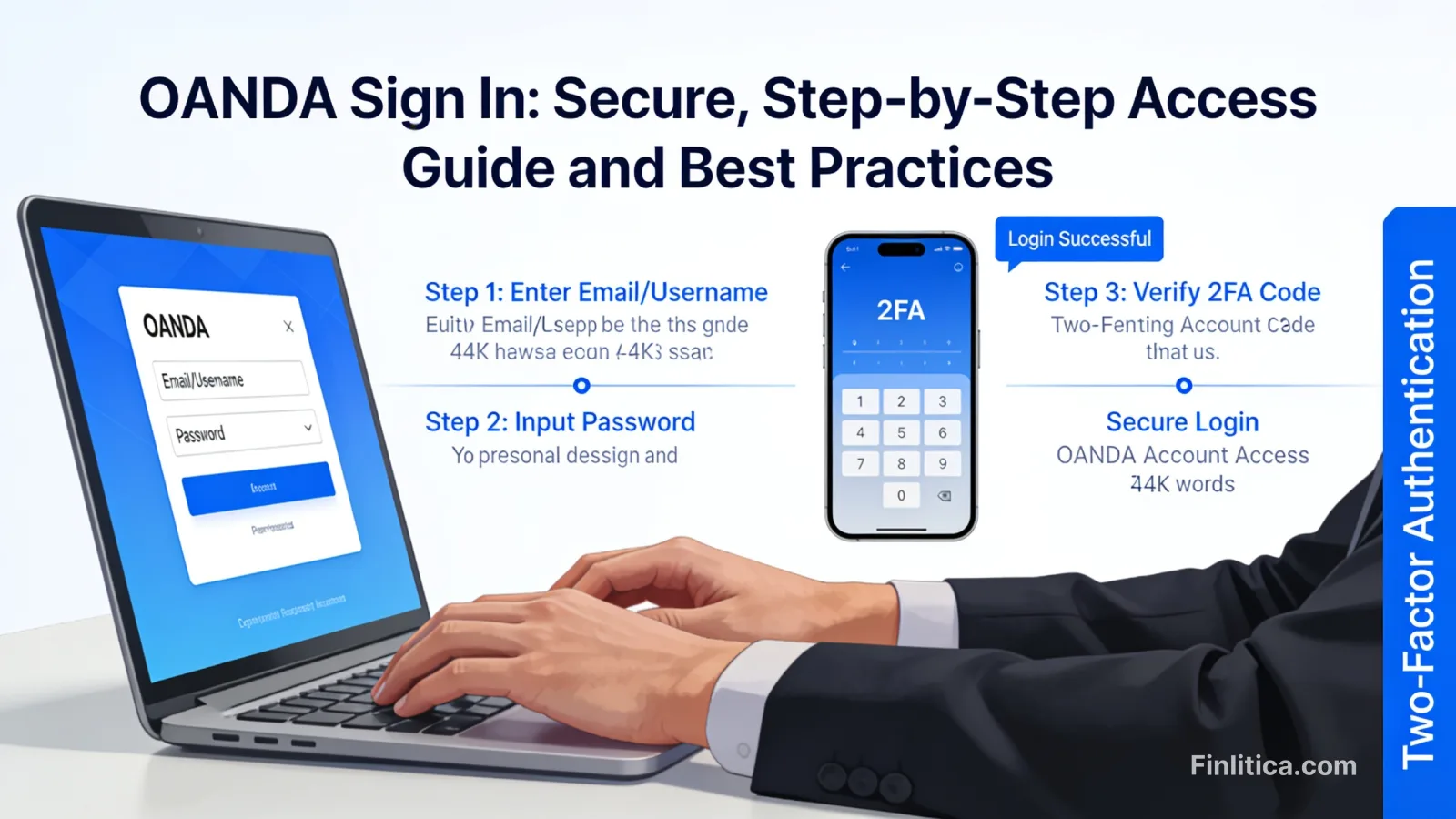
Step-by-Step
- Open your browser and navigate to the official OANDA site through a bookmark or by manually typing the address. Avoid clicking unknown links.
- Select the sign-in option, then enter your registered email or username and your password.
- If you use a password manager, confirm the saved credentials match your current login.
- Complete two-factor authentication if prompted. Enter the code from your authenticator app or approved method.
- Confirm that you land in your account dashboard or trading portal as expected.
Quick Checks If Something Looks Off
- Look for typical site indicators such as correct branding and expected layout.
- Check browser address bar for accurate domain spelling you recognize.
- If you suspect a phishing page, close the tab and access your account via a trusted bookmark.
How to Sign In on Mobile
Logging in on a phone or tablet provides flexibility while traveling or monitoring positions on the go. The process mirrors the desktop flow.
Step-by-Step
- Open the official OANDA mobile app you previously installed from a trusted app store.
- Enter your email/username and password in the sign-in fields.
- Complete your 2FA step if enabled.
- Optionally enable biometric authentication (if your device supports it) to streamline future sign-ins. Only do this on your personal device.
Mobile Security Tips
- Lock your device with a passcode or biometrics.
- Keep your OS and app updated for the latest security patches.
- Avoid signing in on public or shared devices.
Two-Factor Authentication: Why It Matters
2FA adds a layer of protection by requiring a time-sensitive code in addition to your password. Even if someone discovers your password, they would still need your 2FA method to access your account.
- Options often include an authenticator app or SMS-based codes (availability may vary by region and settings).
- Authenticator apps generally offer stronger resilience against interception compared with SMS.
- Store recovery codes (if provided) securely so you can regain access if you lose your device.
Troubleshooting Common OANDA Sign In Issues
If you run into problems, work through the checks below to isolate the cause and resolve it efficiently.
1) Incorrect Password or Username
- Confirm you’re using the registered email or username associated with your account.
- Check for typos, extra spaces, or accidental caps lock.
- If you still can’t sign in, use the password reset option and create a strong new password you haven’t used before.
2) 2FA Code Not Working
- Verify your device clock is set to automatic time; desynchronized time can break app-based codes.
- Try a new code cycle from your authenticator app.
- If using SMS, ensure you have network coverage and that your number is up to date in your account settings.
- If you have recovery codes, use one to regain access and then reconfigure your 2FA device.
3) Account Locked After Multiple Attempts
- Too many failed logins can trigger a temporary lock to protect your account.
- Wait for the lockout to expire, then sign in carefully with the correct details.
- Reset your password if you’re unsure of the correct one.
4) Browser or App Errors
- Clear your browser cache/cookies or try a private window to rule out stale data.
- Disable conflicting browser extensions temporarily.
- Update your browser or app to the latest version.
- Try another device to determine whether the issue is device-specific.
5) Regional Access or Compliance Prompts
- Some features or portals may vary by region due to local rules.
- If you see unexpected prompts or blocks, review any regional notices in your account after you regain access.
Security Best Practices for Every Login
Strong sign-in hygiene helps protect your account and personal information over the long term.
- Use a unique, complex password for your OANDA account-ideally generated and stored by a reputable password manager.
- Enable 2FA and keep recovery codes in a secure, offline location.
- Sign in only on trusted networks and devices. Avoid public Wi‑Fi when possible.
- Do not reuse passwords across financial or email accounts.
- Regularly review recent login activity in your account’s security settings if available.
- Log out when you finish, especially on shared or work devices.
- Be cautious with emails requesting you to sign in. Access your account via a trusted bookmark or the official app rather than clicking links in unsolicited messages.
Managing Sessions and Devices
Understanding how sessions work helps you keep control of where your account is accessible.
- Remembered devices: If you chose “remember this device,” the platform may skip extra verification steps on that device. Use this only on personal, trusted devices.
- Active sessions: If your account offers a list of active sessions, review and sign out from any you don’t recognize.
- Shared computers: Always use a private/incognito window on shared machines and log out when done.
Password Resets and Account Recovery
If you cannot sign in after several attempts, a systematic reset is the fastest route back to your account.
Secure Reset Workflow
- Initiate a password reset from the official sign-in page.
- Follow the instructions sent to your registered email. If you do not receive the message, check spam or wait a few minutes before requesting another link.
- Create a new, unique password. Avoid using old or similar passwords.
- Sign in and re-enable or verify 2FA if needed.
What If You Lose 2FA Access?
- Use recovery codes if you saved them.
- If recovery codes are unavailable, follow the platform’s account recovery process. You may be asked to verify identity to protect your account.
Organizing Your Sign-In Routine
Consistency reduces errors and saves time-especially if you manage multiple accounts or devices.
- Bookmark the official sign-in page to avoid phishing traps.
- Use a password manager to store credentials and 2FA backups (for supported formats).
- Schedule periodic security reviews: update passwords, verify 2FA devices, and check account activity.
Frequently Asked Questions
Why can’t I complete my OANDA sign in even with the right password?
Time-based 2FA code drift, browser cache conflicts, or a device-specific issue may block access. Sync your device time, try a private browser window, and confirm you’re entering the latest authenticator code. If issues persist, reset your password and review your 2FA settings after logging in.
How often should I change my password?
Change your password immediately if you suspect compromise. Otherwise, a strong, unique password managed by a password manager typically requires fewer changes. Periodic reviews-such as quarterly-can help ensure ongoing security.
Is it safe to enable “remember this device”?
It can be convenient, but only enable it on a private device you control. Do not use it on shared or public computers. If your device is lost or replaced, review active sessions and sign out remotely if the option is available.
What should I do if my account is locked?
Account lockouts usually expire after a set period to prevent brute-force attempts. Wait for the cooldown and use the correct credentials. If you still can’t access your account, initiate a password reset and review your 2FA configuration.
Do I need 2FA on every device?
Yes, enabling 2FA on your account protects you regardless of device. Some platforms remember trusted devices, but 2FA remains a critical safeguard for new or unrecognized logins.
Can I sign in from multiple devices at once?
In many cases, yes, but review your account’s session management to ensure you recognize all active logins. Sign out of devices you no longer use.
Why am I seeing regional notices during sign in?
Some features vary by jurisdiction, and you might see notices related to local requirements. Review any prompts carefully and proceed as directed by the platform.
Conclusion
A secure and efficient OANDA sign in relies on three pillars: accurate credentials, robust two-factor authentication, and smart device hygiene. By using unique passwords, enabling 2FA, and signing in only from trusted environments, you streamline access while protecting your account. Keep this guide handy for quick troubleshooting and routine security checkups.