OANDA app: Features, Usability, and Tips for Smarter Mobile Trading
Explore the OANDA app’s core features, usability, security, and practical tips. Learn how its charting, order types, risk controls, alerts, and account tools fit different trading styles. Includes FAQs, pros and cons, and guidance to evaluate whether this mobile platform matches your needs.
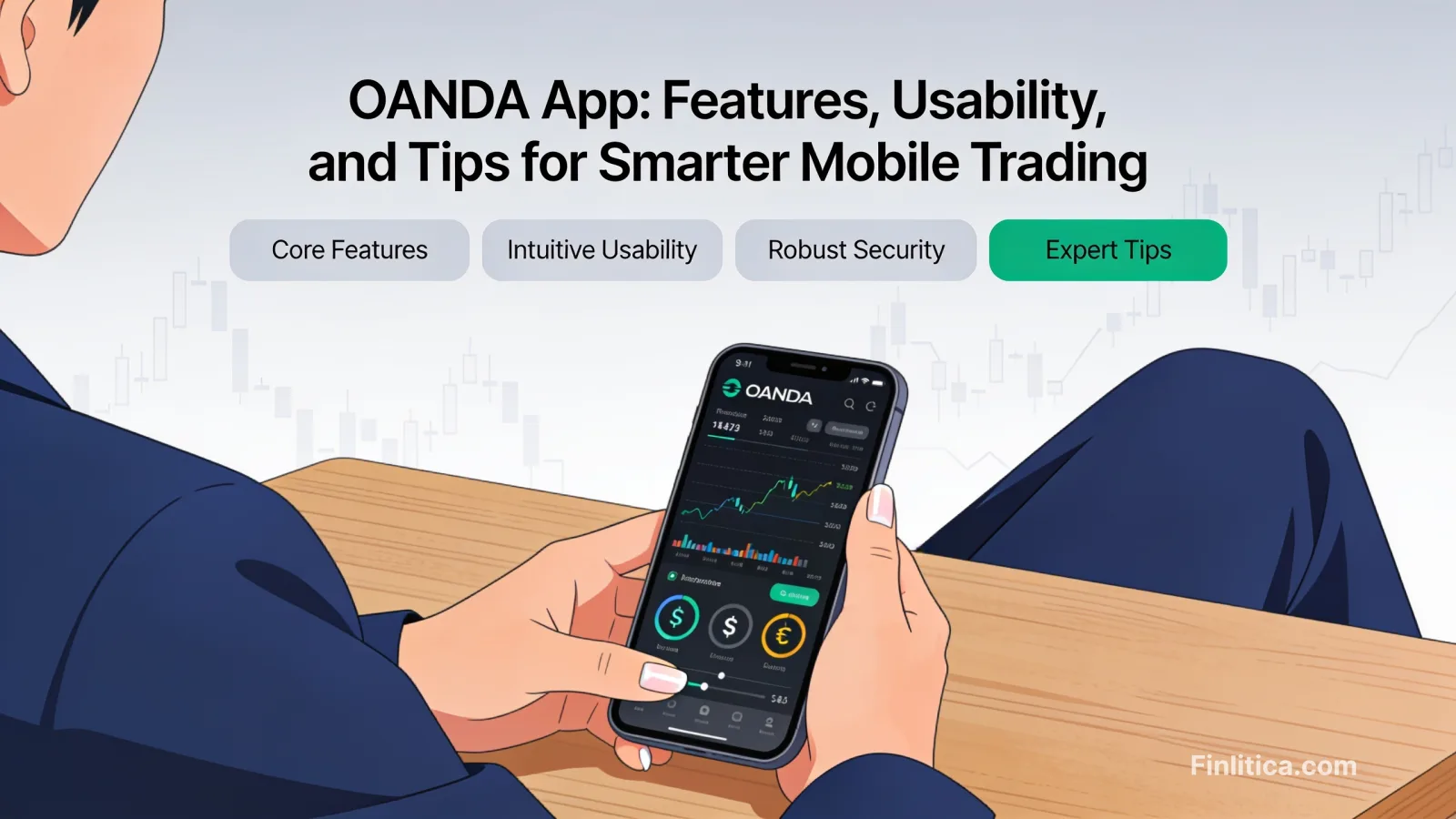
The OANDA app brings core trading functions, market analysis, and account management into a streamlined mobile experience. For traders who value quick access to charts, flexible order types, and timely alerts, the app aims to make daily decisions more efficient without overwhelming the screen. This guide explains how the OANDA app is structured, which tools stand out, and practical ways to evaluate whether it aligns with your trading routine and risk tolerance.
What the OANDA app aims to do
At its core, the app concentrates on giving you a clear read on price action, a reliable toolkit for placing and managing trades, and controls that help you organize risk. Beyond execution, it adds watchlists, alerts, and basic research features so you can monitor opportunities wherever you are. The goal is not to replicate every desktop nuance, but to streamline the essential steps you repeat most: scanning, planning, and placing orders with confidence.
Core features and tools
Charting and technical indicators
The charting package typically includes multiple timeframes, popular chart types, and a library of indicators such as moving averages, RSI, MACD, Bollinger Bands, and oscillators. Drawing tools-like trendlines, channels, and Fibonacci retracements-help visualize structure and potential support or resistance zones. You can often save chart layouts, switch symbols quickly, and add indicators with a few taps.
Watchlists and alerts
Custom watchlists let you organize instruments by theme or strategy. Price and indicator-based alerts can notify you when markets meet predefined conditions, keeping you from constantly monitoring the screen. You can set thresholds, choose alert types, and reduce noise by focusing only on key events relevant to your plan.
Order tickets and modifications
The app’s order ticket is designed for clarity. You can typically place market, limit, and stop orders, add stop-loss and take-profit parameters, and adjust trade size with position calculators. Modifying or closing trades is straightforward from positions or charts. The objective is to minimize taps from idea to execution while preserving precision and control.
User experience and design
The mobile interface emphasizes information density without clutter. Navigation usually centers on a bottom menu: Markets, Charts, Trade/Orders, and Account. From there, you can jump from a watchlist to a chart to an order ticket fluidly. Typography, color contrast, and responsive layouts aim to make candles and indicators legible even on a small screen.
Performance matters in fast markets. The app is optimized to load tick data, switch instruments, and render charts quickly under normal network conditions. On unstable connections, you may experience delays or temporary data gaps-as with any mobile platform-so it’s wise to confirm critical actions and enable alerts as a backup.
Orders, execution, and risk controls
When evaluating a mobile trading app, focus on how well it supports your risk process. The OANDA app lets you attach stops and targets at the outset, modify them on the chart, and monitor open risk across positions. You can often view unrealized P/L in multiple units (such as pips or account currency) and set default order parameters to speed up routine tasks.
Partial closes, bracket orders, and the ability to predefine trade sizes add control. Depth of market and slippage visibility may vary by instrument and conditions. As with any trading environment, outcomes depend on liquidity, volatility, and your order type, so consider how each setting affects your risk and execution expectations.
Research, education, and insights
The app typically includes market summaries, economic calendar events, and selected research items. For strategy refinement, educational content can help you understand technical tools, risk frameworks, and how different market conditions influence entries and exits. The objective is to keep guidance concise and actionable without distracting you from the core workflow.
Account management and security
Account sections provide balance and margin snapshots, transaction history, and settings for notifications and preferences. You can manage personal details, verify account status, and, where available, explore account types. Authentication features commonly include passcodes and biometric options supported by your device. Data protection practices generally follow standard mobile security conventions, but you should still enable device-level protections and keep your app updated to benefit from ongoing improvements.
Who the OANDA app is best for
The OANDA app suits traders who value mobility and concise tools. If your workflow involves scanning a handful of instruments, placing a few planned trades, and letting alerts do the heavy lifting between sessions, the app can help. Active traders who frequently adjust stops or scale positions may appreciate chart-integrated order management. Long-term users who mainly check positions, rebalance occasionally, and rely on scheduled alerts also benefit from the streamlined interface.
Feature availability, instruments, and account options can vary by region and account setup. If you rely on specialized order types or advanced analytics, confirm that the specific tools you need are enabled in your location.
Pros and cons at a glance
- Pros: Streamlined order ticket; clear charts and drawing tools; customizable alerts; consistent account snapshots; biometric login options on compatible devices.
- Pros: Watchlists and layouts that reduce repetitive setup; straightforward modification of stops and targets from charts.
- Cons: Advanced analytics and deep customization are typically lighter than on desktop; smaller screens can constrain multi-chart workflows.
- Cons: Performance and data refresh depend on device resources and network quality, which can affect fast execution in volatile markets.
Tips to get more out of the OANDA app
- Standardize templates: Create a default chart layout with your core indicators and save it so each new symbol opens ready to analyze.
- Plan entries and exits: Use alerts at key technical levels to prompt a review rather than chasing price in real time.
- Automate risk sizing: Set default stop distances or position calculators to keep trade risk consistent across instruments.
- Use bracket orders: Attach stop-loss and take-profit at the outset to avoid managing risk under pressure.
- Review execution logs: After each session, check fills and modifications to refine order types and timing.
- Optimize notifications: Configure push alerts for only the events that matter to reduce noise and improve response time.
- Keep the app updated: Updates can include stability, security, and usability improvements.
How it compares to typical mobile trading apps
Compared with many mobile platforms, the OANDA app emphasizes clarity in order placement and editable chart overlays. It offers the common building blocks-indicators, drawing tools, watchlists, alerts-without burying essentials behind multiple menus. Some advanced functions that power users enjoy on desktop may be condensed or omitted for speed and simplicity on mobile. The trade-off generally favors a faster path from analysis to execution, provided your strategy doesn’t depend on extensive multi-window analysis.
Evaluating fit for your trading style
Consider the following checkpoints as you test-drive the app:
- Instrument coverage: Confirm the markets and products you plan to trade are available for your account type and region.
- Order workflow: Ensure your preferred order types and modifications (such as partial closes) are supported and intuitive on your device.
- Charting needs: Verify your core indicators and drawings are easy to apply and manage on a small screen.
- Risk management: Check that you can set and edit stops/targets quickly and that position metrics are displayed in the formats you use.
- Alerting: Test that alerts arrive promptly and are configurable enough to match your routine.
- Synchronization: If you also use a desktop platform, confirm that watchlists and chart settings sync the way you expect.
- Accessibility: Try the app under different network conditions to understand behavior during peak volatility.
Frequently asked questions (FAQ)
Is the OANDA app suitable for beginners?
Yes, the interface is designed to be approachable, with clear order tickets and straightforward chart tools. Newer traders may benefit from starting with a small set of indicators, using alerts, and practicing with non-live environments if available to get comfortable with order placement and risk controls.
Does the app offer a practice or demo mode?
Many mobile trading apps provide a practice environment. Availability and features can depend on your region and account configuration. Check within the app for a demo or practice toggle if applicable to your setup.
Can I sync watchlists and layouts with desktop?
Synchronization features are commonly supported, though specific behavior varies by platform and account. Test with a few symbols and templates to confirm that the syncing meets your workflow needs.
What instruments can I trade in the app?
Instrument availability depends on your region, account type, and applicable rules. Review the in-app market list to confirm access to the instruments you plan to trade.
Does the OANDA app support advanced order types?
The app generally supports core orders (market, limit, stop) and risk parameters (stop-loss, take-profit). Some advanced types or conditional logic may be limited on mobile. Evaluate your strategy’s requirements before relying solely on the app.
Can I automate trading from the mobile app?
Mobile platforms typically focus on manual execution and monitoring. If you rely on automation, you may need to use desktop or server-based solutions and then manage positions and alerts from the app as appropriate.
How are costs and financing details displayed?
Apps commonly display costs and position metrics on order tickets and in position details. Review these fields carefully before placing or modifying an order so you understand potential charges and financing implications for your account and region.
Is the OANDA app secure?
The app includes authentication options supported by your device, such as passcodes or biometrics. As with any mobile trading tool, enable device-level protections, keep your operating system up to date, and avoid using public networks for sensitive actions when possible.
Does it support price alerts and news notifications?
Yes, configurable alerts are a central feature. You can typically set price thresholds and receive push notifications. News or event reminders may also be available depending on configuration and region.
Can I use the app on a tablet?
Yes, most mobile trading apps can run on tablets. Layouts often adapt to give charts and watchlists more room, which can improve usability for multi-step workflows.
Conclusion
The OANDA app focuses on delivering a clean path from market scan to order execution, with charting, alerts, and risk controls that fit daily routines. Its strengths are clarity, speed, and a balanced toolset that avoids overwhelm on small screens. If your trading style relies on concise analysis, predefined risk, and timely notifications, the app can be a practical companion. As always, confirm instrument access, order features, and synchronization behavior for your region and account before making it your primary platform.