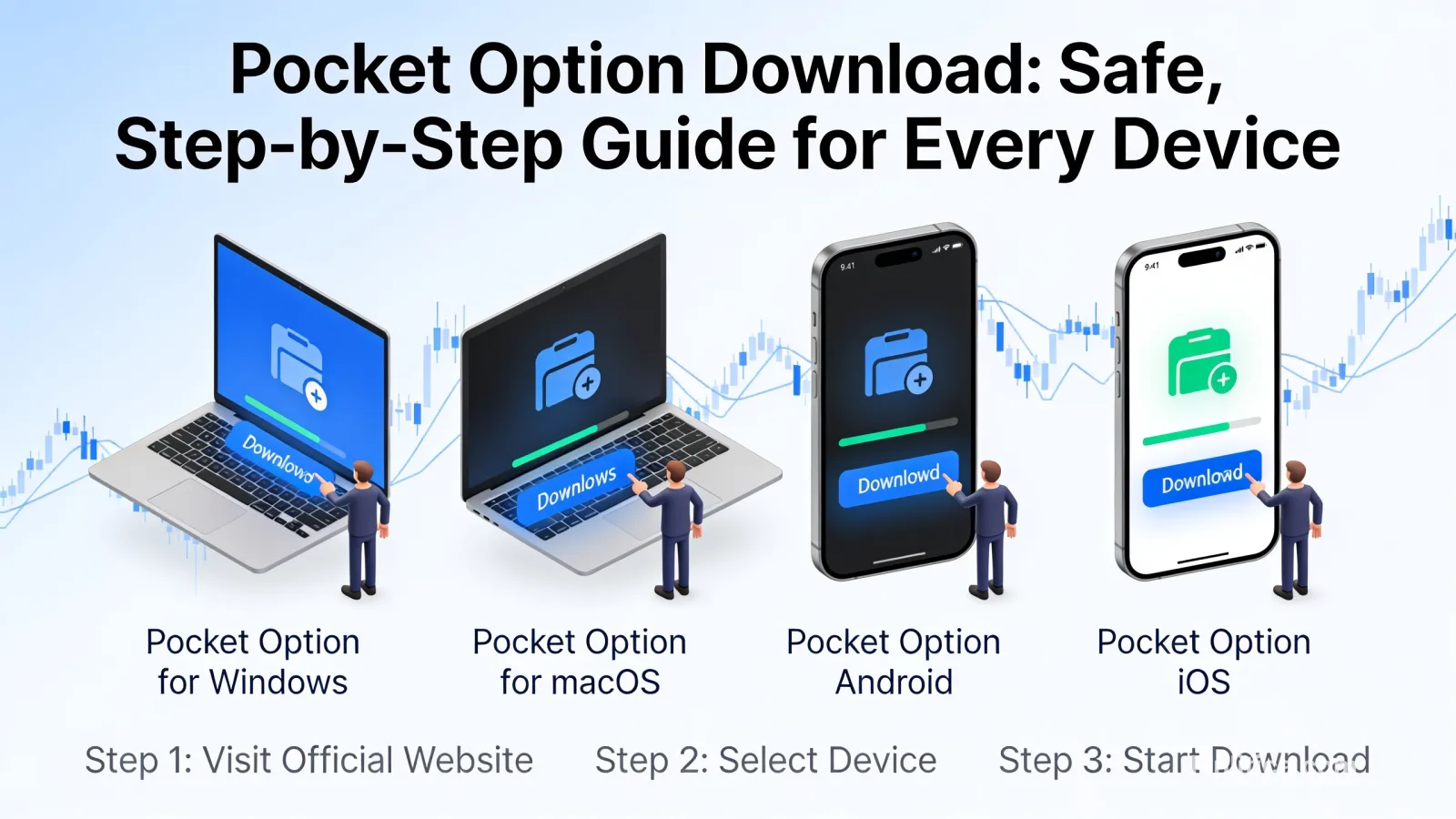
Pocket Option Download: Safe, Step‑by‑Step Guide for Every Device
Learn how to complete a safe Pocket Option download on Windows, macOS, Android, and iOS. This guide covers legit sources, system requirements, installation steps, troubleshooting, and security tips-without hype or unverifiable claims.
If you are considering a Pocket Option download, it pays to approach the process carefully. Choosing the correct app for your device, verifying authenticity, and understanding basic security practices can help you avoid counterfeit software and keep your data safe. This guide walks through platform-specific steps, common troubleshooting tips, and essential checks so you can install the app with confidence and start exploring its features responsibly.
What Pocket Option Is-and What It Isn’t
Pocket Option is a trading platform that provides tools for short-term and longer-term speculation on various instruments. While the interface may feel straightforward, trading involves risk of loss, and outcomes are not guaranteed. This article focuses solely on the download and installation process, along with general safety guidance. It does not provide investment advice or recommendations.
Before You Download: Safety and Legitimacy Checklist
Not all apps you find online are genuine. Prioritizing app integrity helps protect your funds and personal information. Use the checklist below before initiating any Pocket Option download.
- Confirm the official publisher name in your device’s app store or the software’s digital signature on desktop installers.
- Check recent app reviews and update history within your device’s app marketplace for normal release cadence and user feedback.
- Avoid downloading from third-party mirrors or unfamiliar file-sharing sites.
- Scan desktop installers with reputable antivirus or built-in security tools before opening.
- After installing, verify app permissions (camera, microphone, notifications) match features you intend to use.
Supported Platforms and Typical Paths to Install
Pocket Option is commonly available on major operating systems. Availability can vary by region and device model. If an app is not visible in your local store, check your device compatibility and regional settings.
Windows (Desktop)
- Download the installer from the official source associated with the provider.
- Verify the file name and digital signature where supported by your OS.
- Run the installer, accept the end-user license agreement, and follow on-screen prompts.
macOS (Desktop)
- Obtain the .dmg or .pkg installer from the official channel.
- If macOS blocks the app from an unidentified developer, review your security settings and confirm the publisher before allowing installation.
- Drag the app to Applications and launch it from Launchpad or Spotlight.
Android (Mobile/Tablet)
- Search for the official app in your device’s app store.
- Confirm the developer name and number of installs to avoid clones.
- Install and, when prompted, review requested permissions.
iOS (iPhone/iPad)
- Find the app in the App Store by searching its official name.
- Check the developer listing, ratings, and version history.
- Tap Get/Install, authenticate if required, and open the app from your home screen.
Basic System Requirements and Permissions
Exact requirements may change with updates, but the following guidelines are typical for a smooth Pocket Option download and installation:
- Windows: Recent supported version (e.g., Windows 10 or later), sufficient RAM (4 GB or more recommended), stable internet connection.
- macOS: A reasonably current macOS version, 4 GB+ RAM, available disk space for the app and cached data.
- Android: A modern Android OS version within current support, adequate storage, and internet access.
- iOS: A currently supported iOS version, adequate storage, and network access.
Common permissions you may encounter include:
- Notifications: For trade alerts and system messages; optional.
- Camera/Microphone: Typically for identity verification during account setup; only enable when needed.
- Storage: For caching app data and logs.
Step-by-Step Installation Overview
Desktop (Windows/macOS)
- Step 1: Locate the official installer via the provider’s recognized distribution channel.
- Step 2: Verify authenticity (file hash or digital signature when available).
- Step 3: Temporarily close unrelated programs to prevent conflicts.
- Step 4: Run the installer and select a destination folder if prompted.
- Step 5: Allow the app to complete initial updates after first launch.
Mobile (Android/iOS)
- Step 1: Open your device’s official app store and search for the app by name.
- Step 2: Confirm the developer and review recent update notes for legitimacy.
- Step 3: Tap Install and wait for the download to complete.
- Step 4: Open the app and review permissions as prompted.
- Step 5: Enable two-factor authentication within settings for added security.
First Launch: Account and Security Basics
After completing your Pocket Option download and installation, take a moment to configure essentials. Platform features may vary by region and regulations; follow on-screen guidance and applicable terms.
- Create or sign in to your account using a strong, unique password.
- Enable multi-factor authentication (MFA) to protect access.
- Complete any required identity verification steps if prompted by the platform.
- Set up notification preferences and review default privacy settings.
- Explore demo or practice modes if available before committing real funds.
Remember: Trading is risky. Only deposit funds you can afford to lose, and consider using educational resources to understand order types, fees, and market mechanics before you trade.
Troubleshooting Common Download and Installation Issues
App Not Appearing in Store
- Check regional availability for your account and device.
- Ensure your OS version meets minimum requirements.
- Restart your device and refresh the store cache if possible.
Installer Won’t Run (Desktop)
- Right-click and run as administrator on Windows if permissions block installation.
- On macOS, confirm Gatekeeper settings and verify the developer ID before proceeding.
- Temporarily pause conflicting antivirus scans, then re-enable after installation.
Slow or Stalled Downloads
- Switch to a stable Wi‑Fi network and pause other large downloads.
- Clear app store cache (where supported) and retry.
- Check available storage and free up space if required.
App Crashes or Freezes at Launch
- Update the app to the latest version.
- Reboot the device and check OS updates.
- On desktop, update graphics drivers and verify system time/date.
- If problems persist, consider reinstalling after backing up necessary data.
Best Practices for a Secure Experience
- Keep your OS and the app updated to the latest stable versions.
- Enable MFA and use a password manager to maintain unique credentials.
- Regularly review connected devices and active sessions in account settings.
- Be cautious with public Wi‑Fi; consider a trusted network for account access.
- Disable unnecessary permissions and background refresh if you do not need them.
Frequently Asked Questions (FAQ)
Is the Pocket Option download free?
Downloading the app is generally free. Trading may involve costs, and terms can vary by region and account type. Review all terms within the app before proceeding.
Do I need to create an account to use the app?
You typically need an account to access full functionality. Some platforms offer limited browsing or demo modes without full registration.
Why can’t I find the app in my app store?
Availability can depend on your region, device model, and OS version. Confirm compatibility and consider updating your device software before searching again.
Is it safe to install the desktop version?
Safety depends on downloading from an official source, verifying the installer’s integrity, and keeping your system security tools up to date. Avoid third‑party mirrors.
What permissions does the app require?
Common permissions include notifications and, for certain features, access to camera or microphone (e.g., identity checks). You can usually adjust these in your device settings.
Can I trade immediately after installing?
You may need to complete registration, verification, and risk disclosures first. Consider starting with a practice environment if available.
What if the app crashes on startup?
Update the app, restart your device, and ensure your OS is current. If issues persist, reinstall the app after backing up essential data.
Does the app work on tablets?
Many tablets are supported if they meet OS and hardware requirements. The interface may adapt to larger screens depending on the device.
Conclusion
A careful, step-by-step Pocket Option download helps ensure you install the legitimate app and protect your account from the start. Verify the source, meet system requirements, review permissions, and enable strong security features such as multi-factor authentication. Proceed thoughtfully, use educational resources, and remember that trading involves risk-only engage with funds you can afford to lose.