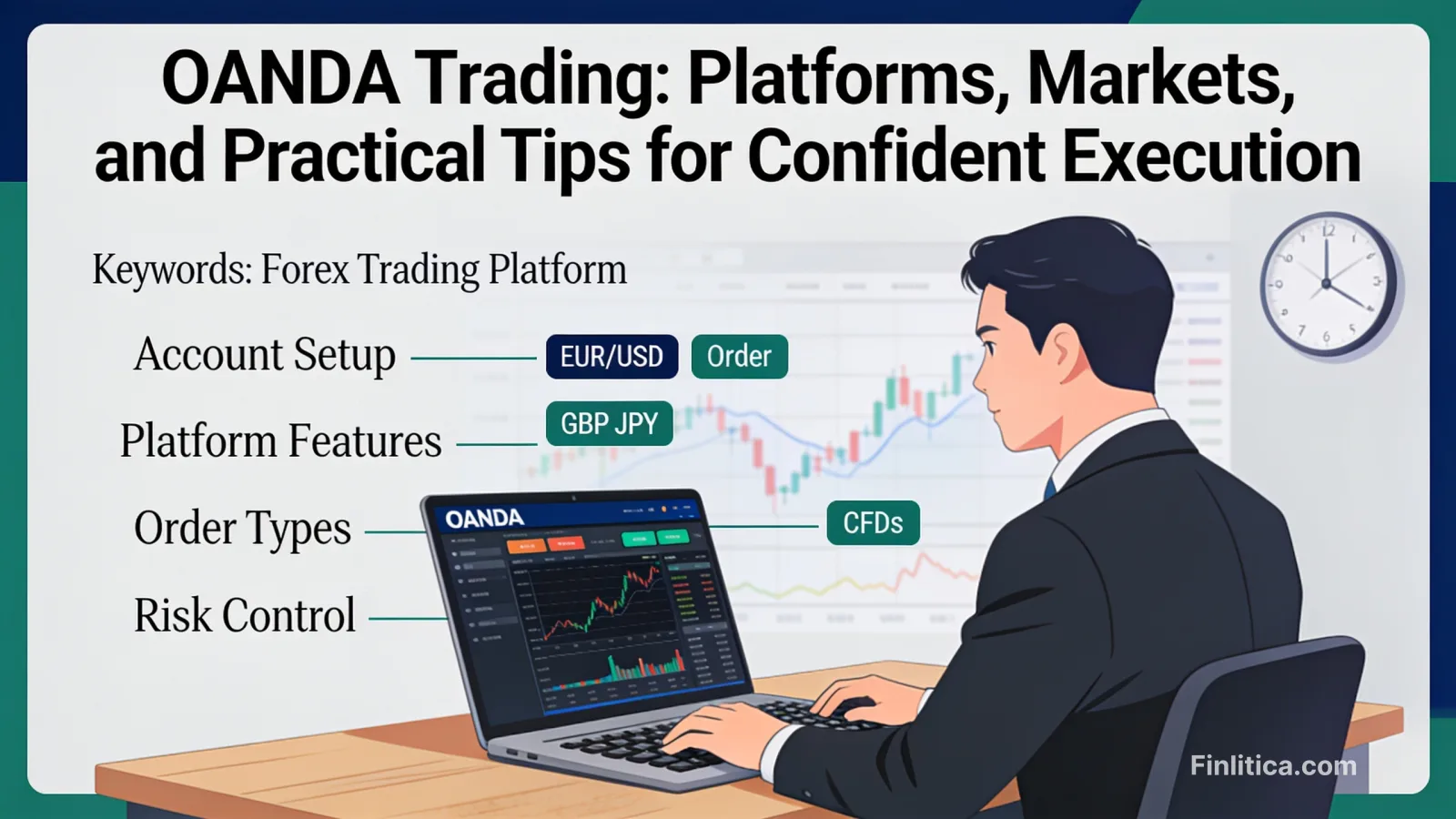
OANDA MT4: Features, Setup, and Practical Tips for Smarter Trading
Learn how to use OANDA MT4 effectively, from platform setup and tools to order types, risk controls, and practical tips. Discover key features, best practices, and answers to common questions in this comprehensive guide.
OANDA MT4 brings the familiarity of MetaTrader 4 together with a broker known for robust infrastructure and wide market access. Whether you are exploring algorithmic strategies, building a discretionary trading workflow, or simply seeking a reliable execution environment, this guide distills the essentials you need to get started efficiently and operate with confidence. Below, you will find a structured walkthrough of features, setup steps, risk controls, and practical best practices tailored to everyday trading.
What Is OANDA MT4 and Who Is It For?
OANDA MT4 refers to using the MetaTrader 4 (MT4) platform with an OANDA trading account. MT4 is widely adopted for its charting flexibility, custom indicators, and support for Expert Advisors (EAs). When paired with OANDA, traders typically gain access to forex and select CFDs, along with tools that integrate account data within the MT4 interface. This combination suits:
- Discretionary traders who want customizable charting and order execution.
- Algorithmic traders who rely on EAs, scripts, and robust backtesting workflows.
- New traders seeking a well-documented, widely supported platform with a large educational ecosystem.
Key Platform Features and Tools
While core MT4 functionality is consistent across brokers, working with OANDA can influence available instruments, execution policies, and ancillary tools. Key features include:
Core Charting and Analysis
- Timeframes and chart types: Access multiple timeframes and standard chart modes (candlesticks, bars, line) for technical analysis.
- Built-in indicators: Utilize common tools such as moving averages, MACD, RSI, and Bollinger Bands; combine them with drawing tools for structure and trend assessment.
- Custom indicators: Add third-party or custom indicators coded in MQL4 to refine your analysis.
Expert Advisors (EAs) and Automation
- Strategy automation: EAs can place, modify, and close trades based on rules you define.
- Backtesting: Evaluate historical performance in the MT4 Strategy Tester to understand behavior under varied market conditions.
- VPS compatibility: Consider hosting your MT4 terminal on a virtual private server for more stable connectivity when running EAs.
Order Types and Execution
- Market and pending orders: Place market, limit, and stop orders; adjust for partial fills where applicable.
- Stops and targets: Manage risk via stop-loss and take-profit levels directly on the chart or in the order window.
- Trailing stops: Automate dynamic risk reduction as trades move in your favor.
Getting Started: Setup and Configuration
Setting up OANDA MT4 is straightforward. The following steps outline a typical onboarding flow and initial configuration.
1) Install and Connect
- Download and install the MT4 terminal from your account area.
- Launch MT4, then go to File > Login to Trade Account. Enter your account number and password, and select the correct server (live or demo).
- Confirm the connection status in the lower-right corner of MT4; green/red bars indicate data flow.
2) Configure the Workspace
- Market Watch: Right-click to show all available instruments, then create a favorites set tailored to your watchlist.
- Charts: Set your preferred colors, grid visibility, and default indicators. Save profiles/templates for quick reuse across symbols.
- One-click trading: Enable this for faster order execution directly from charts (Tools > Options > Trade).
3) Add Indicators and EAs
- Indicators: Drag from the Navigator panel to your chart. Tweak inputs to match your methodology.
- EAs: Place MQL4 files into the appropriate MT4 folders, then restart MT4 or refresh the Navigator. Enable AutoTrading only after verifying logic and parameters.
- Permissions: In EA settings, check “Allow live trading” and symbol-specific inputs as needed.
Risk Controls and Position Sizing
Managing downside risk is central to sustainable trading. MT4 provides several controls you can align with your plan.
Define Risk per Trade
- Use position size calculators, or predefine lot sizes that align with a fixed percentage of equity at risk.
- Account for spread and potential slippage, especially during volatile sessions or illiquid hours.
Place Protective Orders
- Stop-loss: Attach a stop based on technical invalidation levels rather than arbitrary pips.
- Take-profit: Set targets aligned with risk-to-reward thresholds and key structure (e.g., support/resistance, measured moves).
- Trailing stops: Consider partial exits or trailing logic for trend-follow strategies.
Monitor Margin and Leverage
- Margin level: Keep a buffer above your broker’s margin requirements to avoid forced liquidations.
- Leverage: Use conservatively to reduce the probability of large drawdowns.
Execution Workflow: From Idea to Order
A clear workflow helps reduce errors and enhances consistency:
- Idea generation: Start with top-down analysis (higher to lower timeframes) to align bias with structure.
- Setup validation: Confirm confluence (trend, key levels, momentum signals) and plan entries, stops, and targets.
- Order placement: Use one-click or standard tickets; verify symbol, lot size, and protective levels.
- Trade management: Log entries/exits, capture screenshots, and note deviations from your plan for later review.
Using EAs and Backtesting Thoughtfully
Automation can streamline execution, but requires careful validation:
- Data quality: Backtest with the best available historical data on the specific symbols you intend to trade.
- Robustness checks: Evaluate across multiple timeframes, instruments, and parameter variations to reduce overfitting.
- Forward testing: Run on a demo or with minimal risk to observe live behavior before scaling.
- Monitoring: Even well-tested EAs can behave unexpectedly during fast markets; monitor logs and error messages in the Experts and Journal tabs.
Platform Customization Tips
MT4 allows workflow refinements that save time and reduce errors:
- Templates and profiles: Create chart templates for different strategies (trend-following, mean-reversion). Save profiles for specific watchlists (majors, crosses, indices).
- Hotkeys: Assign shortcuts for frequent actions (e.g., changing timeframes, toggling objects).
- Objects list discipline: Label lines/levels (e.g., “HTF support”) to avoid confusion, and clear outdated objects regularly.
- Alerts: Set price alerts on key levels to avoid missing planned setups.
Common Pitfalls and How to Avoid Them
- Overfitting EAs: Systems optimized for a narrow window often degrade. Favor simplicity and robustness testing.
- Ignoring spread/rollover: Factor costs into stop/target placement and strategy design, especially for short-term trading.
- Overleveraging: Large positions amplify noise and can trigger margin calls during routine volatility.
- Order errors: Double-check symbol, lot size, and stop/target entries before confirming.
- Neglecting updates: Keep MT4 and any custom code updated to reduce compatibility issues.
MT4 vs. MT5 in Brief
While this guide focuses on OANDA MT4, some traders consider MT5. MT4 is known for its broad indicator library and established EA ecosystem. MT5 offers expanded timeframes and additional order types, along with a different programming language (MQL5). Choice often hinges on your toolchain, existing codebase, and preferred feature set. If you favor mature MQL4 scripts and a familiar layout, MT4 remains a compelling option.
Best Practices for Consistent Performance
- Write a plan: Define entry criteria, risk per trade, max daily loss, and review cadence.
- Journal diligently: Record rationale, screenshots, and post-trade notes to refine edge.
- Test changes small: Introduce new indicators or EA settings on demo or reduced size first.
- Mind the calendar: Be aware of scheduled events that can affect spreads, volatility, and slippage.
- Keep charts clean: Minimalist layouts often improve decision-making and speed.
Security and Stability Considerations
- Account protection: Use strong, unique passwords and enable available security features.
- Connectivity: For automated strategies, consider a stable VPS and monitor latency.
- Data backups: Export templates, profiles, and EA settings regularly to safeguard your configuration.
FAQ: OANDA MT4
How do I switch between demo and live accounts in MT4?
Go to File > Login to Trade Account and enter the credentials for the specific account. Ensure you select the corresponding server (demo or live). You can store multiple logins in the terminal and switch as needed.
Can I use my existing MT4 indicators and EAs with OANDA MT4?
Yes, most MQL4-based indicators and EAs are compatible. Place files in the appropriate MT4 folders and restart or refresh the Navigator. Always test on a demo or with small risk before live deployment.
What instruments can I trade on OANDA MT4?
Availability varies by region and account type but typically includes major and minor forex pairs and, in some jurisdictions, select CFDs. Check the instrument list in Market Watch for your account.
How do I reduce slippage on entries and exits?
Trade during more liquid sessions, avoid placing orders directly into high-impact news, and consider limit orders where appropriate. For EAs, build in logic that accounts for spread and execution conditions.
Is MT4 suitable for beginners?
Many beginners start with MT4 due to its extensive documentation and community resources. Focus on learning basic order types, charting, and risk controls before adding complexity.
What’s the best way to backtest EAs on MT4?
Use the Strategy Tester with the most accurate historical data you can obtain for the symbols you plan to trade. Run tests across multiple timeframes and sample periods, then forward test on demo.
How do I organize multiple strategies in MT4?
Create separate profiles and templates for each strategy, and use consistent naming conventions for indicators, objects, and screenshots. Consider running distinct terminals or accounts to isolate performance metrics.
Conclusion
OANDA MT4 combines a trusted broker connection with the familiarity and flexibility of MetaTrader 4. By setting up a clean workspace, applying disciplined risk controls, and validating any automated logic through robust testing, you can create a streamlined workflow that supports clear decision-making. Keep your process simple, document changes, and evolve your approach based on evidence gathered from your own trade data.